Show more than one time zone on Windows
Windows can already show a few time zones, if you know where to look. These are the three ways I know, from the extra clocks built into the taskbar to a free world clock that keeps every city in view, with the steps for Windows 11 and Windows 10.
Free for Windows 10 and 11, x64, about 90 MB. It isn’t code-signed yet, so SmartScreen may warn you the first time (what to do).
- Windows 11 and 10
- Two ways built in
- One free app
Two extra clocks on the taskbar
Built into Windows. Good for one or two other time zones you check now and then.
Windows 11
- Open Date & time. Go to Settings > Time & language > Date & time.
- Find Additional clocks. Where it sits on that page has changed between Windows 11 updates. If you can’t find it, press Windows+R, type
timedate.cpl, press Enter and open the Additional Clocks tab. - Set up a clock. Turn on the first clock, choose its time zone and give it a name, like the city or a teammate. The second clock works the same way.
Windows 10
- Open Date & time. Go to Settings > Time & Language > Date & time.
- Select Add clocks for different time zones. It’s under Related settings, and it opens the Additional Clocks tab of the classic Date and Time window.
- Set up a clock. Turn on the first clock, choose its time zone and type a name. The second works the same way. Then select OK.
To see them, hover over the clock at the right end of the taskbar, or click it. Windows allows two extra clocks, so with your own that makes three time zones.
The Clock app’s World clock
Also built in. It keeps a list of cities and can compare times.
- Open Clock. Select Start and pick Clock from the app list, or type Clock in the search box.
- Select World clock. If you don’t see it, open the menu at the top left first.
- Add a city. Select Add a new city at the bottom, type the first few letters of a place, pick it from the list and select Add.
- Compare. Select Compare and move the slider to see what time it will be in each city.
It’s a regular app window, so once other windows cover it you have to bring it back to check a time. It also has alarms, timers and a stopwatch, which Open World Clock doesn’t.
Always in view: Open World Clock
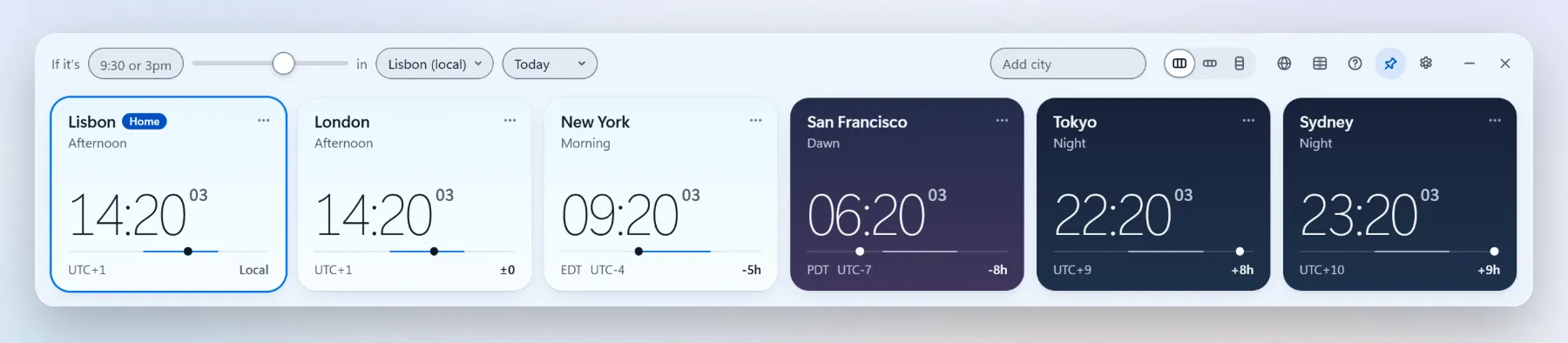
A free, open source world clock that can stay above every window. I made it because I wanted my cities on screen without opening anything.
- As many cities as you like, in a strip, a compact bar or a vertical column.
- Pin it above other windows and it stays in view while you work.
- Day and night at a glance: each card follows its city’s real sunrise and sunset.
- Convert any time: type 3pm in any city, or scroll over a card, and every clock moves with it.
- Free, with no account and no ads, and it works offline.
Free for Windows 10 and 11, x64, about 90 MB. It isn’t code-signed yet, so SmartScreen may warn you the first time (what to do).
Side by side
Swipe to see the other columns
| Question | Open World Clock | Taskbar clocks | Clock app |
|---|---|---|---|
| How many time zones | As many as you like | Two, plus your own | The cities you add |
| Always visible | Yes, if you pin it | No, hover over or click the taskbar clock | No, it’s a regular window |
| Converts a time | Type a time, or scroll over a card | No | Compare, with a time slider |
| Comes with Windows | No, it’s free from the Microsoft StoreNo, it’s a free download | Yes | Yes |
Windows settings move between updates. If a step here doesn’t match your screen, tell me on GitHub and I’ll fix the page.
More about Open World Clock
Put the world on your desktop
Completely free for Windows 10 and 11. Open source, no account, no ads, no telemetry.
Free for Windows 10 and 11, x64, about 90 MB. It isn’t code-signed yet, so SmartScreen may warn you the first time (what to do).